How to Crop a Video Online
Drop your video above, draw a crop region or select a preset aspect ratio (16:9, 9:16, 4:3, 1:1), and export. The tool extracts only the pixels inside your selection, re-encodes them as MP4, and gives you a download. Everything runs locally in your browser.
Cropping is essential for repurposing content across platforms. A 16:9 YouTube video can be cropped to 9:16 for TikTok or Reels, or to 1:1 for Instagram feed posts. If you need to change the resolution after cropping, follow up with the video resizer.
Cropping vs Resizing: What Is the Difference?
Cropping removes pixels from the edges of the frame. It changes the visible area and the aspect ratio without scaling anything. Resizing scales the entire frame to different dimensions, which can stretch or letterbox the content depending on the fit mode.
Use cropping when you want to cut out a specific region, like removing a watermark area or reframing a subject. Use resizing when you want to change the output resolution while keeping the full frame visible. Both tools can be used together for maximum control.
Why Crop Video in the Browser?
Most free online video croppers upload your file to their servers, process it remotely, and add a watermark. This tool does none of that. Your video stays on your device. The crop and re-encode happen via WebCodecs on your GPU, so processing is fast even for long clips.
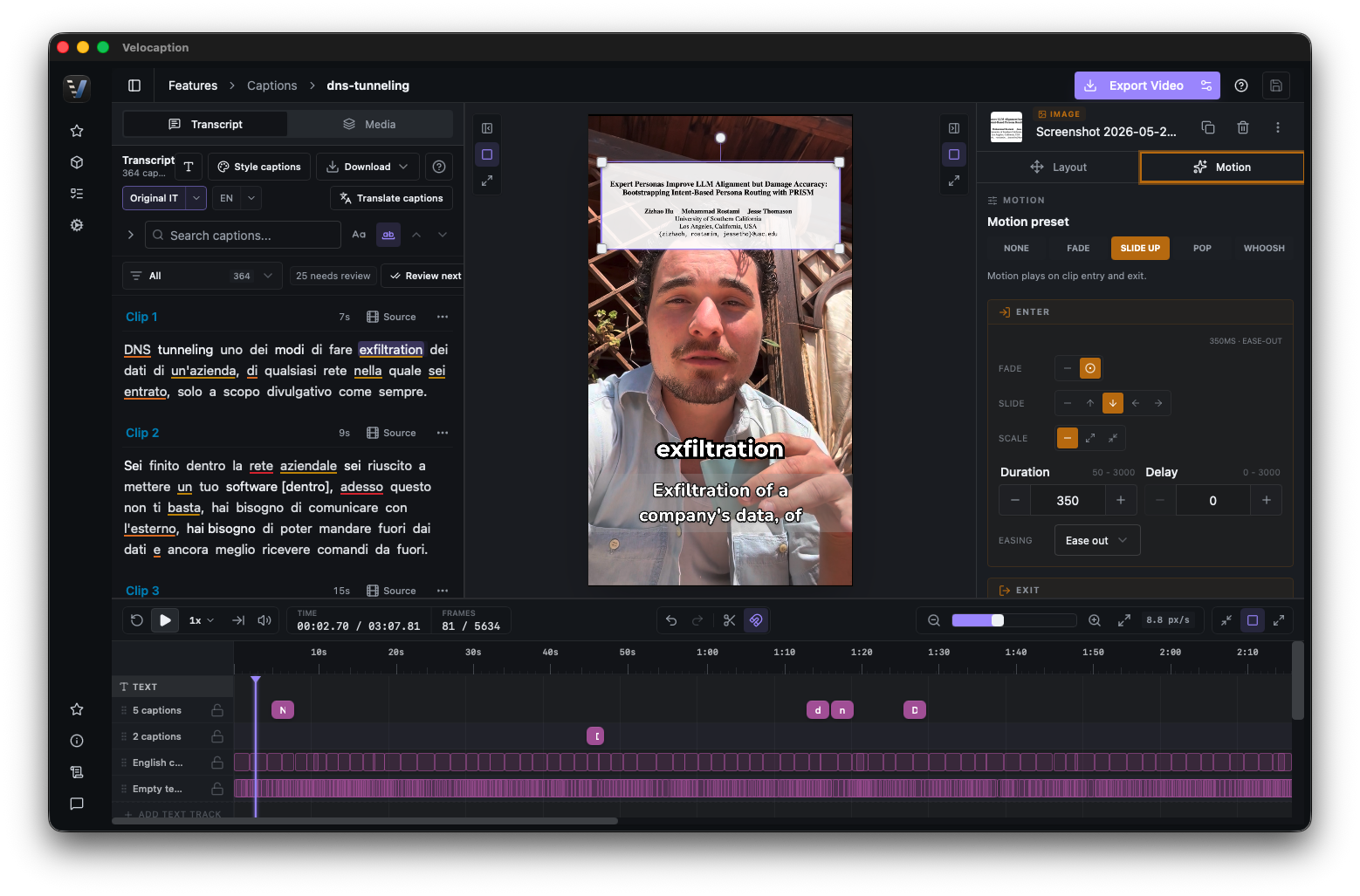
After cropping, you can trim the timeline or compress the result to reduce file size. For adding burned-in captions to your cropped videos, explore Velocaption. Browse all free tools on the tools page.