
The Auto Silence Remover Guide
AirDrop iPhone clips, multi-select files from Finder, clean dead air locally, and hand the cleaned timeline to captions.
Editing talking-head videos, internal corporate updates, or podcasts usually involves a hidden tax: the hours spent manually removing dead air. Every breath, every pause to check notes, and every awkward silence must be cut to keep the modern viewer engaged.
Traditionally, this meant spending hours manually splicing clips in a heavy NLE or bouncing the file into a separate cleanup tool before the real edit could continue.
Velocaption changes that. The Auto Silence Remover detects quiet sections, gives you waveform review controls, and keeps the cleanup step connected to captions, overlays, and export. You can start from the built-in recorder, or from footage you shot on an iPhone, camera, or another app.
Shoot on iPhone, AirDrop the clips to your Mac, multi-select them in Finder, and drop them into Velocaption. Cleanup runs locally, so you can tighten a folder of raw talking-head clips before deciding which ones deserve a full finishing pass.
1. Building Your Narrative on the Multi-Clip Timeline
Velocaption handles more than a single clean take. The multi-clip timeline is built for real recording sessions with intros, retakes, demos, and outros.
To get started, drag your raw video files from Finder into the app. If you recorded an intro, a main presentation, and an outro as three separate files, multi-select them, drop them all in, and reorder them on the timeline.
Because Velocaption processes the timeline locally on your Mac, you avoid the slow upload/download loop of browser-based editors.
2. Dialing in Detection
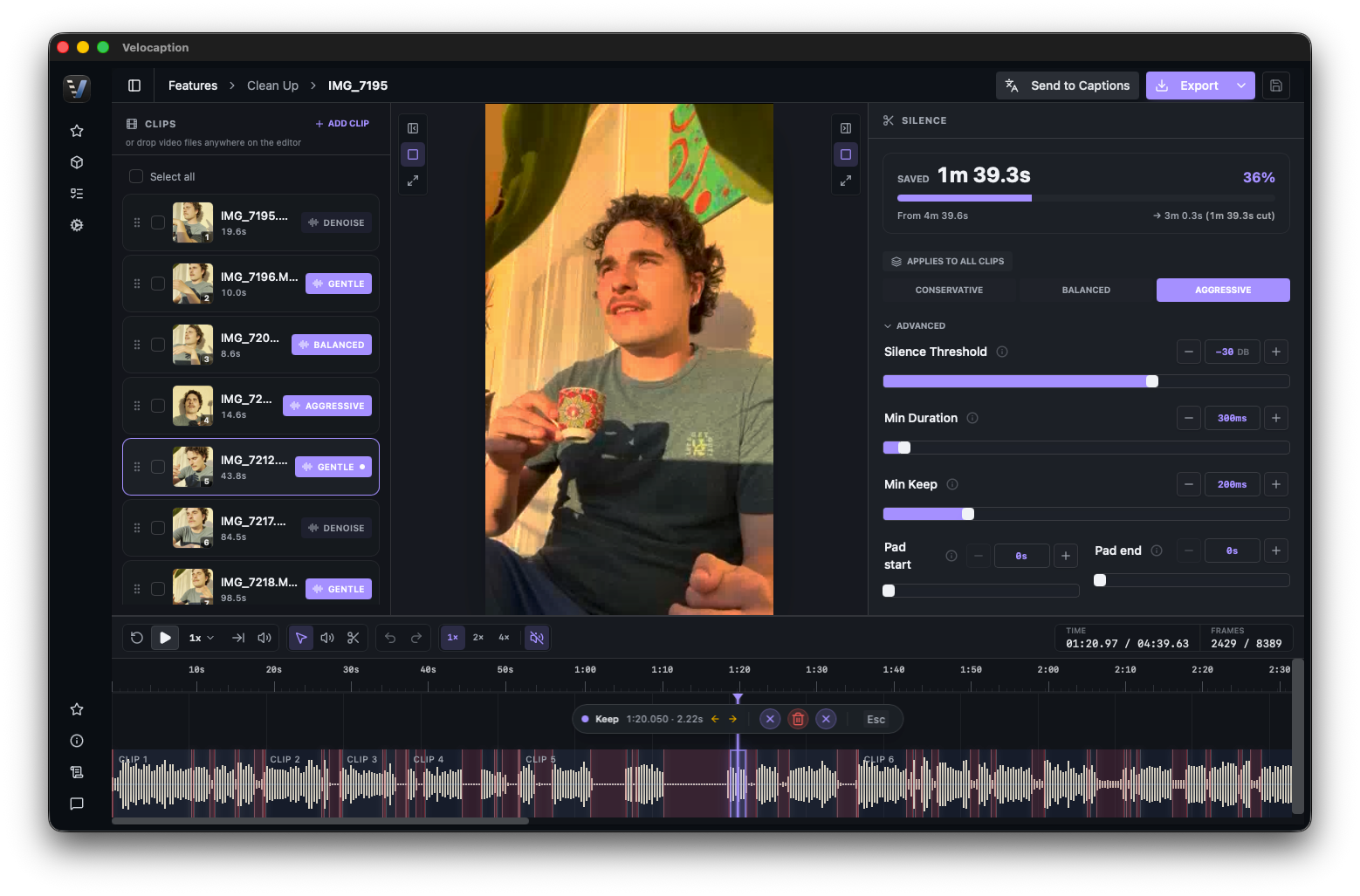
Once your clips are on the timeline, Velocaption analyzes the audio waveform to identify the natural gaps in human speech. You have control over how aggressively the cleanup behaves using four sliders:
- Decibel Threshold: Sets the volume level that the app considers “silence.”
- Minimum Silence Duration: Determines how long a pause must be before it gets cut. Lower this to make aggressive, rapid-fire social media cuts; raise it for a more relaxed, conversational corporate tone.
- Padding: The secret to natural-sounding edits. Add a few milliseconds of padding to the start and end of your cuts so the speech doesn’t sound robotic or clipped.
- Minimum Keep Duration: Prevents the engine from isolating tiny, unwanted noises (like a quick cough or a mic bump) that happen between silent moments.
As you adjust these sliders, watch the Percentage Dropped metric on your screen. It shows how much dead air the current settings remove before you commit to the export.
Clean pacing before captions.
Get Velocaption today. €59/year or €139 lifetime. Backed by a 30-day money-back guarantee.
3. Regaining Control with Manual Overrides
Detection is fast, but you are still the editor. Velocaption keeps the timeline editable so you can review and override decisions.
If you want to tweak the pacing manually, you have NLE-style controls. Move the playhead and press ‘B’ to split a clip, or drag the edges of any silence range to extend or shorten the cut.
If Velocaption kept a section of video where you made a mistake, click that segment and mark it as silence to drop it. If it cut a pause you want to keep, click it and restore it.
4. Studio-Grade Audio Cleanup
Corporate videos and remote interviews are rarely recorded in treated rooms. If your footage has air conditioner hum, keyboard clicks, or heavy room echo, you can reduce it before export.
Select any clip on your timeline and toggle the Noise Removal feature. Powered by DeepFilterNet, Velocaption reduces background interference before you export or send the file to captions.
5. The One-Click Handoff (Finishing Your Video)
Velocaption is designed to keep finishing steps connected. Once your pacing is tight and your audio is clean, you do not have to rebuild context in a second app.
Click the Export button. Velocaption will render your jump-cut video natively. When it finishes, a dialog appears with a single, powerful button: Open in Captions Editor.
Clicking this hands the cleaned video to the Captions Editor, where you can generate local captions, review the transcript, apply saved text styles, add translations or overlays, mix background music, and prepare the video for export.
Ready to speed up your workflow?
Stop treating silence cleanup as a disconnected export step. Clean the timeline, review the cuts, and move straight into captions.
Clean the timeline before you caption.
Get the local Mac video studio. €59/year or €139 lifetime. 30-day money-back guarantee.