
The Local Captions Guide
Generate captions on your Mac, correct the transcript, reuse text styles, add translations and overlays, then export burned-in captions or subtitle files.
Adding subtitles to your videos is no longer optional. They improve accessibility, make silent playback usable, and help viewers scan the shape of a clip before they commit to watching it.
Velocaption keeps captioning inside the same Mac workflow as cleanup and export. The Captions Editor uses a local Whisper workflow, then gives you a focused finishing workspace for transcript review, reusable text styles, translations, overlays, background music, and subtitle export instead of leaving you with raw generated text.
Here is a complete guide on how to transcribe, review, style, enrich, and export captions.
1. The Local Whisper Workflow
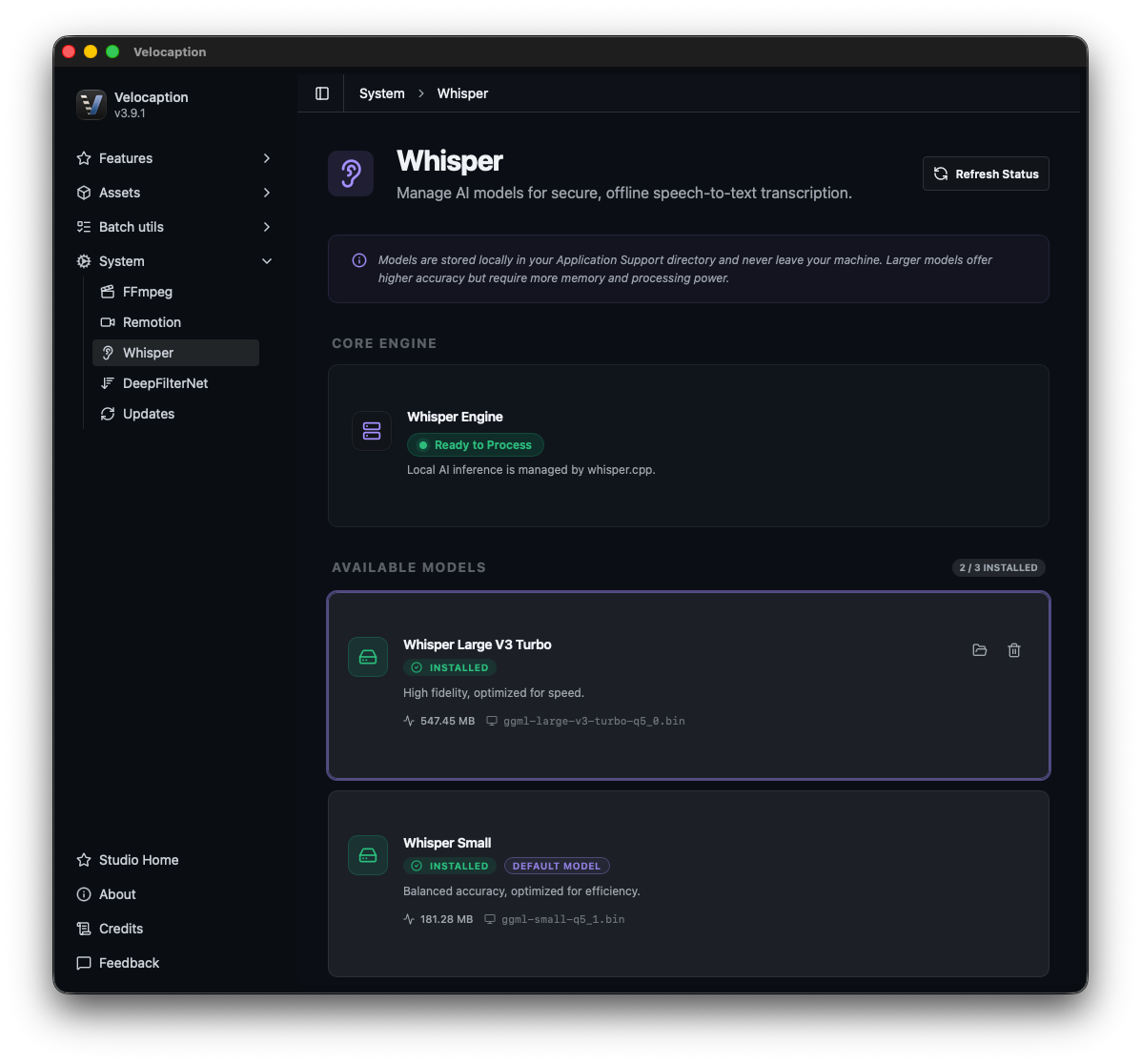
When you first launch the Captions Editor, Velocaption prepares a lightweight Whisper model for local transcription on your Mac.
From there, you can generate captions without paying per-minute API fees, review the transcript, and keep timing corrections close to the rendered preview. The engine currently supports Auto-Detect, English, Spanish, French, German, Italian, and Portuguese.
You can start here even if you never used the built-in recorder. Import a finished video, a silence-cleaned clip, or footage from Finder, then use Captions as the final pass for subtitles, translations, animated text, logos, picture-in-picture video, sound effects, and background music.
2. Smart Gap-Filling for Seamless Pacing
One of the most frustrating parts of auto-generated subtitles is the “flicker” effect: when captions disappear during a brief pause in speech, only to pop back in a second later.
Velocaption eliminates this with an intelligent Gap-Filling feature. With a single click, the editor automatically extends the duration of your subtitle blocks to cover any micro-gaps between phrases. This ensures your text remains on-screen, providing a smooth, continuous reading experience for your viewers that feels polished and professional.
Caption on your Mac.
Get Velocaption today. €59/year or €139 lifetime. Backed by a 30-day money-back guarantee.
3. The Precision Transcript Editor
Even good transcription can mishear a technical acronym, a person name, or a brand term. Velocaption provides a dedicated Transcript Sidebar to make corrections quickly.
- Edit & Revert: Click any word in the sidebar or directly on the timeline to type a correction. Made a mistake? Right-click to revert to the original transcription.
- Replace All: If transcription consistently misspelled a name, right-click the word and select “Replace All Occurrences” to fix the repeated term.
- Merge Words: Sometimes you want a specific phrase kept together. Command-click multiple words and select “Merge” to combine them into a single block.
- Timeline Adjustments: Need to adjust exactly when a word appears? Click the word’s clip in the visual timeline to drag it, cut it, or precisely trim its start and end timestamps.
4. Exporting for SEO and Accessibility
Once the transcript is ready, Velocaption gives you several export paths.
If you are building a social media clip, you can burn the text directly into a final MP4 video with reusable caption and text styles (covered in our Brand Assets guide).
If you are uploading to YouTube, LinkedIn, or a corporate intranet, you can export your transcript as a .TXT, .SRT, or .VTT file, as well as a raw JSON file. That gives you closed-caption files for accessibility and a reusable transcript for metadata or documentation.
Ready to finish captions on your Mac?
Stop bouncing between transcription tools, styling tools, overlay tools, and subtitle converters. Generate, review, style, enrich, and export directly on your Mac.
Transcribe and finish captions locally.
Get the Captions Editor. €59/year or €139 lifetime. 30-day money-back guarantee.